
Creative workflows
How to Put a Photo in a Snow Globe Video for a Christmas Card
Turn one photo into a 5-second snow globe clip for a Christmas card: which photo and scene to pick, our two recorded clips, and how to add the greeting.
Video examples here were generated on Cicadas and keep their model, settings and date. Cicadas earns money when you generate with these models. How we test
- Test window:
- 2026-09-27 – 2026-11-12
- Clips recorded with these models:
- 190
- Models:
- MiniMax H3 Max
- Their provider cost:
- ≈$56.58
- Selection:
- every clip we keep is listed with its settings, cost and request ID; failed or discarded runs are listed in the test record.
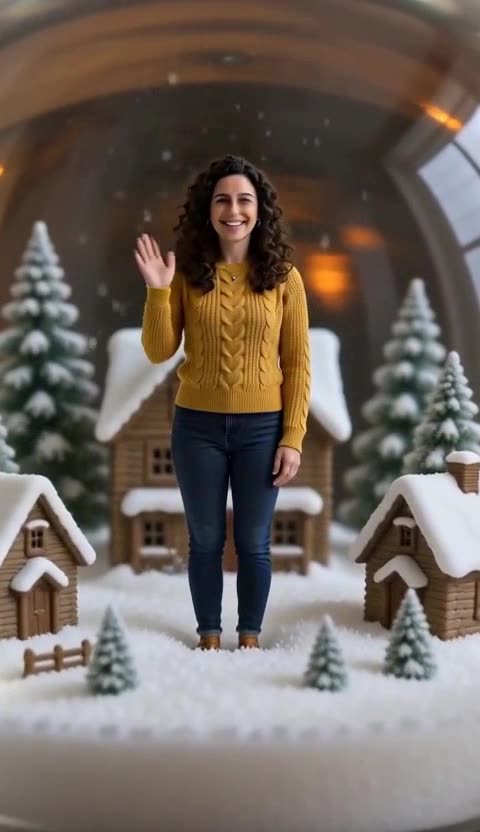
Short answer: pick one clear photo of yourself, two adults or your pet, open the snow globe video page, choose the matching scene and generate a 5-second vertical clip on MiniMax H3 Max. The model draws a glass globe with a tiny version of your subject inside while the snow swirls and settles. It writes no words, so the greeting goes on afterwards in a video editor. Below are the two clips we recorded, what differed from the prompts, and the two ways to get words onto a card.
This post is by the people who run Cicadas, and it links to our own tools. Both clips were generated on November 2, 2026 from the site's own sample photos, and each cost USD 0.25 at the model's list price. What we say a clip shows comes from frames we looked at. The sound was not listened to, so we quote what the prompt asked for and do not describe what you hear.
Step 1: choose the photo
The photo is a reference, not the first frame: the model shrinks whoever is in it into a figure a few centimetres tall. Small figures lose detail, so give it as much as you can. A face turned roughly toward the camera, even light, no sunglasses and no heavy filter work best. For a couple, use one photo with both adults in it; a group photo with more people makes the miniatures harder to hold. Use a photo of yourself, of adults who agreed to appear, or of your own pet. Photos of children are not accepted.
Step 2: pick one of the three scenes
The page has three fixed scenes, and you choose the scene, not the wording:
- On the mantel (one person): a globe on a wooden mantel beside string lights, the figure waving from a snowy village square.
- Tiny winter garden (a pet): a globe on a windowsill at dusk, the pet under a little pine tree.
- Snowy bench (two adults): a globe beside a candle, the two figures on a park bench under a lamp post. We have not recorded this scene, so we cannot show you how it comes out.
What came out: On the mantel
The prompt, word for word:
A glass snow globe on a wooden mantel beside warm string lights, vertical, one continuous shot. Inside the globe, a tiny miniature of the person from Image 1 stands in a small snowy village square, smiles and waves up at the camera. A hand gently shakes the globe and white snow swirls around the tiny figure, then slowly settles. The camera pushes in slowly toward the glass. Keep the person's face, hair and clothes as in the photo, at miniature scale. Sound: a soft glassy shake and quiet room tone, no music. No text, no logos, no other people.
What came out: a glass globe on a wooden mantel in front of string lights. Inside, a tiny version of the woman waves among snowy cottages and pine trees. A hand rests on top of the globe, the snow clouds the glass and settles, and the camera pushes in until the glass shows only at the edges of the frame. Her curly hair, mustard sweater and jeans match the photo, and no lettering appears.
What differed from the prompt: the prompt asks for a hand that shakes the globe; in the clip the hand rests on top of it. The prompt names a village square; the clip shows cottages and pine trees.
What came out: Tiny winter garden
A glass snow globe on a windowsill at dusk with snow falling outside, vertical, one continuous shot. Inside the globe, a tiny miniature of the pet from Image 1 sits in fresh snow under a little pine tree and looks up at the camera. A hand gently shakes the globe, snow swirls around the pet, it blinks and tilts its head as the flakes settle. The camera pushes in slowly toward the glass. Keep the pet's face, fur colour and markings exactly as in the photo, at miniature scale. Sound: a soft glassy shake and quiet room tone, no music. No people inside the globe, no text, no logos.
What came out: the globe sits on a windowsill with snow falling outside. Inside, the tabby sits in the snow beside a small pine tree. A hand rests on top, the snow clouds the glass and clears as the camera pushes in. The grey stripes and white chest match the photo.
What differed from the prompt: again the hand rests on the globe instead of shaking it. The prompt also asks for a blink and a head tilt; the frames we looked at do not let us confirm either.
Step 3: add the greeting
The snow globe scenes ask for no text and no logos, and the snow globe page has no text tool. You have two honest options:
- Keep the globe, add words yourself. Download the MP4 and put "Merry Christmas" and your names over it in any video editor. Place the line low in the frame, where the mantel or windowsill is, so it does not cover the figure.
- Use the card page for typed words. The Christmas card video page works differently: your photo is the first frame and stays as photographed while snow, fairy lights or frost move over it. Under a clip made there, Add a name and greeting sets a greeting of up to 48 characters and a name of up to 24 over the lower part of the picture in your browser, uses no credits, and exports a second MP4. That tool works on clips made on that page, not on a snow globe clip.
If you want the globe, take option 1. If the typed greeting matters more than the globe, take option 2.
Step 4: save and send
The clip lands in My videos as an MP4, 9:16, with the sound the model made. Send the file in a message or attach it to an email like any other video. We have not tested how individual apps recompress or crop it, so play it once on your own phone before you send it to the whole family.
What a snow globe clip cannot do
- It does not keep your photo as it is. It draws a new scene; for your own picture with snow falling over it, use the card page or the snow effect.
- It does not write names, dates or greetings inside the glass.
- It is not a music clip. The scenes ask for a glassy shake and room tone with no music; we have not listened to what the model made.
- It is not an exact portrait. The miniature is a likeness.
- Scenes drawn from text alone, with no photo, are on the AI Christmas video page, and a scene with Santa in it is on the AI Santa video page.
How to do it on Cicadas
- Choose one sharp, evenly lit photo: yourself, adults who agreed to appear, or your pet.
- Open the snow globe video page and pick On the mantel, Tiny winter garden or Snowy bench to match the photo.
- Keep 5 seconds, or choose 10 or 15, read the quote, tick the photo confirmation and generate.
- Watch the whole clip next to your photo, then download the MP4 from My videos.
- Add your greeting in a video editor, or make a second clip on the Christmas card video page if you want the words typed for you.
Cost: MiniMax H3 Max on Cicadas is 63 credits for 5 seconds at 480P, about USD 0.62 on the first credit pack, quoted before you generate; 10 seconds is 125 credits and 15 seconds is 188. The page shows the live quote. For how this model reacts to prompt wording in general, see the MiniMax H3 prompt guide.
Questions
How do I make a snow globe video for a Christmas card?
Open the snow globe video page, pick the scene that fits your photo (one person, a pet or two adults), add one clear photo and generate a 5-second vertical clip. Download the MP4, add your greeting in a video editor, and send it like any other video.
Can the snow globe clip show "Merry Christmas" and our names?
Not from the model: the three scenes ask for no text, because video models misdraw letters. Add the words in a video editor after you download the clip. The greeting tool that types text in your browser belongs to the Christmas card video page and works on clips made there.
Which photo should I use?
One sharp, evenly lit photo with the face roughly toward the camera and nothing covering it. For the two-adult scene, use a single photo with both people in it. Use a photo of yourself, of adults who agreed to appear, or of your own pet; photos of children are not accepted.
How close is the tiny figure to my photo?
Expect a likeness, not a copy, because a miniature carries less detail than a portrait. In our two recorded clips the woman's curly hair, mustard sweater and jeans and the cat's grey stripes and white chest matched the photos.
How much does a snow globe video cost?
On Cicadas, 5 seconds at 480P is 63 credits, about USD 0.62 on the first credit pack; 10 seconds is 125 credits and 15 seconds is 188. You see the price before you confirm, and credits come back if the job fails.
Tools used in this guide
- Snow Globe Video MakerMake a snow globe video from one photo: you, your pet or the two of you as tiny figures inside a glass globe while the snow swirls. 63 credits for 5 s.
- Christmas Card Video MakerChristmas card video from one photo: your picture, pet or product becomes a 5-second clip with falling snow or twinkling lights, and you type the greeting over it in your browser. 63 credits.
- AI Snow Effect Video GeneratorAI snow effect video: animate a photo with falling snow or describe a winter scene. Make a 5–15 second clip with sound; 5 seconds costs 63 credits.