
Motion Control AI: Character Image + Reference Video to MP4New
Make your character move like a reference video with Kling motion control. This motion control AI returns a silent MP4 and bills only delivered seconds.
- Kling V3 Standard
- silent MP4
- billed by delivered seconds
Transfer motion to your character
Upload a reference video and character image → choose orientation → review the quote → download MP4.
Checking availability…
Sign in to upload and recover your resultsKling V3 Standard · Silent MP4. Best reference: one real person, head and upper or full body visible, fixed camera, one continuous shot at moderate speed. Kling keeps only continuous, usable motion, so the result can be shorter than your reference; you pay only for the delivered seconds and the rest is returned automatically. Motion and identity consistency need visual review; no face replacement or facial element binding.
3. Your result
Your processed video will appear here. Recent jobs are saved to your account below.
About motion control on Cicadas
Upload a character image and a reference video, and this motion control AI uses Kling V3 Standard to move your character like the reference. You get a silent MP4 that can be shorter than the reference, because Kling keeps only continuous, usable motion. AI motion control is billed by what you get: the quote shows the maximum up front, you pay only for delivered seconds, and the rest returns automatically.
Why use Cicadas for motion control
Motion control from one image and one video
Use a JPG or PNG character image (up to 10 MB, 340–3840 pixels per edge, aspect ratio 2:5 to 5:2) and an MP4 or WebM reference of 3–30 seconds, at least 340 pixels and up to 80 MB.
Choose the orientation for AI motion control
Follow the image for references up to 10 seconds, or follow the video for references up to 30 seconds. Either way the output is a silent MP4; face replacement and facial element binding are not offered.
Pay only for the motion control seconds delivered
The quote is the maximum for your reference length. If Kling returns a shorter clip, only the delivered seconds are charged and the difference returns with the result. Failed jobs and results under 2.5 seconds are refunded in full.
How to use motion control
- 01
Sign in and upload the reference video (MP4 or WebM, 3–30 seconds, up to 80 MB) and the character image (JPG or PNG, up to 10 MB).
- 02
Choose orientation (follow the image for references up to 10 seconds, the video for up to 30), optionally describe the scene, and confirm you may use both inputs.
- 03
Review the maximum credit quote, confirm, and download the MP4 from the result panel or your account history.
Motion control FAQ
Tested on Cicadas · reviewed 2026-09-29
Real run on 2026-09-28: a character image and a 5.04-second 1280×720 reference went through Kling V3 Standard motion control. Kling kept 2.67 seconds of continuous motion, so 85 of the quoted 159 credits were charged and 74 returned automatically. The character followed the reference walk; the output is silent.
Updated Sep 29, 2026 · How we test
Related tools
 Kling 3.0 Pro · Recorded Cicadas sample
Kling 3.0 Pro AI Video Generator
Turn a prompt or one image into a 5- or 10-second video with Kling 3.0 Pro. Add sound if you like and see the exact credit quote before you generate.
Kling 3.0 Pro · from 140 credits
Tested 2026-09-30
 Wan 3.0 Prime · Recorded Cicadas sample
Wan 3.0 Prime AI Video Generator
Make 5- or 10-second videos from text or one image at 720p or 1080p, with audio on or off. Run Alibaba's Wan 3.0 Prime and see the exact credit quote first.
Wan 3.0 Prime · from 175 credits
Tested 2026-09-30
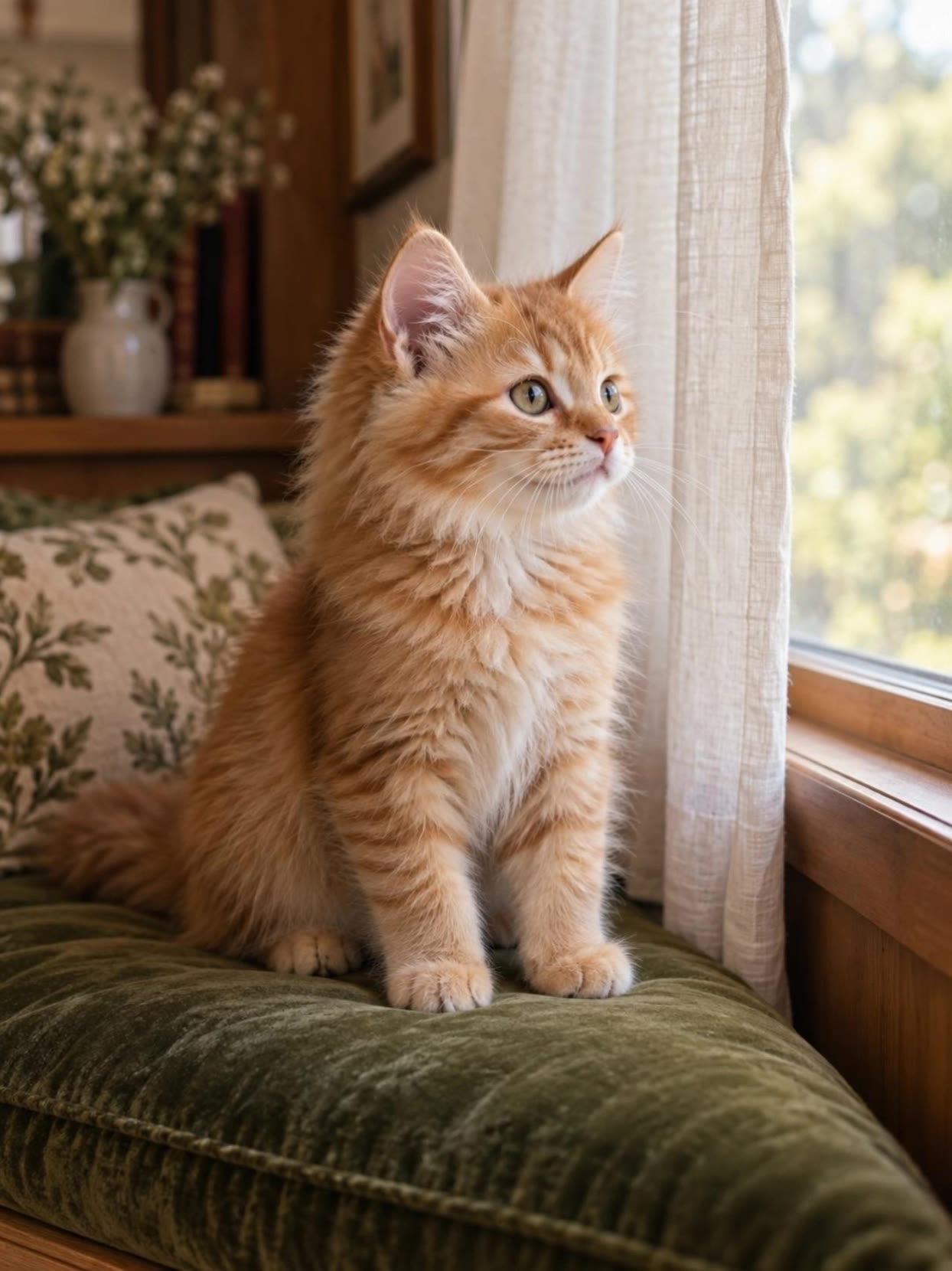 Kling 3.0 Pro · Recorded Cicadas sample
Animate Photo AI
Make a still photo move with animate photo AI: pick one small motion and get a silent 5- or 10-second MP4. Photo to video on Kling 3.0 Pro, price shown first.
Kling 3.0 Pro · from 140 credits
Tested 2026-09-29