
Add Text to Video: Type It, Place It, Download the MP4
Add text to video free: choose a clip, type up to three texts, set where and when each one shows, and download an MP4 with the sound kept. No upload.
- Free
- in your browser
- no watermark
Add text to your video
Runs in your browser. The video and the text are not uploaded.About adding text to a video on Cicadas
Choose a video from your device, type a title or a caption, and it is drawn over the picture where and when you set it. Up to three pieces of text can sit at the top, in the middle or at the bottom, each with its own start and end time. Pick the size, one of three colours and a style (an outline, a box behind the text or a soft shadow), then download an MP4 that keeps the clip's sound. The first 60 seconds of a clip are used. Everything happens in your browser: the video is not uploaded, nothing is charged and no watermark is added.
For words that move on a plain background, use the text animation maker; for a song with its lyrics on screen, the lyric video maker. To hide a face or a number plate in the same clip, use blur video, and to post a silent moment of the finished clip, video to GIF.
Why use Cicadas for adding text to a video
What you see is the file
The text is drawn over the player as you type. Play or drag the clip and each piece appears and leaves at the times you set, in the same place and size as in the download.
Three pieces, each with its own time
A title at the top for the first three seconds, a caption at the bottom for the whole clip, a last line in the middle at the end: each piece has its own place, start and end. A piece fades in and out over a quarter of a second, except on the first and the last frame of the clip, where it is whole.
Your words, letter for letter
No model writes or redraws the text, so names, prices and dates come out exactly as typed, in any language your device has a font for. The picture is never cropped, and the clip's sound is kept.
How to use adding text to a video
- 01
Choose your video: an MP4, MOV or WebM of up to 500 MB. It plays from your device and is not uploaded; a clip longer than 60 seconds is cut to its first 60.
- 02
Type the text, up to two rows of 60 characters. Pick top, middle or bottom and set when it appears and leaves, or keep it for the whole clip.
- 03
Add a second or third piece if you need one, then pick the size, the colour and the style. Outline reads on most footage.
- 04
Pick the size of the file (480p, 720p or 1080p by the short side, never larger than your clip) and press Make the MP4 with this text, then download.
Examples of text added on this page
Both clips under the tool were exported here on 2026-11-15 in Chrome, from two of our own sample videos. The wide one is an 8-second 1280 × 720 clip with a title at the top for the first 3 seconds and a two-row caption at the bottom from 2.5 seconds on, Large, white, Outline: 5.4 MB, exported in 16 to 21 seconds. The vertical one is a 4-second 720 × 1280 clip with a hook at the top for the whole clip and a line in the middle for the last 2 seconds, Medium, yellow, Box behind: 2.3 MB, exported in about 5 seconds. Both keep the source clip's sound.
What this page does, and what it leaves to an editor
It puts still text over your own clip: up to three pieces, in one bold typeface, at the top, in the middle or at the bottom, each for the stretch of time you set. It does not write subtitles from the speech in the clip, animate the letters, offer other typefaces, place text at any point you drag it to, or trim the clip. For words that move on a plain background, use the text animation maker; for a song with its lyrics, the lyric video maker.
Outline, box or shadow: which one reads
Outline puts a dark edge around light text (a light edge around black), so it stays readable when the picture behind it changes; it is the default. Box behind sets the text on a rounded, half-transparent panel and is the safest choice over busy footage such as a crowd or leaves. Soft shadow is the lightest touch and suits calm, dark pictures; over a bright sky white text with only a shadow can wash out.
What you can make
Choose your video in the tool above, then type the text and pick where and when it shows.
“A title at the top for the first 3 seconds of a clip, white with an outline.”
“A caption at the bottom for the whole clip, in a box so it reads over a busy picture.”
“A vertical clip for Reels or Shorts: a hook at the top from the start, and a last line in the middle for the final 2 seconds.”
Adding text to a video FAQ
Tested on Cicadas · reviewed 2026-11-15
Tested on 2026-11-15 in Chrome (Chrome for Testing, headless, on a Mac) on a local development build; not tested in Safari, Firefox or on a phone, though a 390-pixel phone view was checked for layout. The source clips are our own sample videos. Six files were exported through this page: an 8-second 1280 × 720 clip with two texts in Large white Outline at 30 frames a second (5.4 MB, 16 to 21 seconds to export over five runs); a 4-second 720 × 1280 clip with two texts in Medium yellow Box behind at 24 frames a second (2.3 MB, 4.4 to 6.1 seconds); a 5-second 1920 × 1080 clip with no sound track and two texts, one in Chinese with an emoji, in Small white Soft shadow (4.7 MB, 12 seconds; the page reported that no sound could be read from the clip); the first 60 seconds of a 75-second 640 × 360 clip with three texts in black Outline (10.7 MB, 53 seconds; the page said beforehand that only the first 60 seconds are kept); and a 4-second MOV and a 4-second WebM at 480p (1.0 MB each, under 5 seconds). ffmpeg read the files as H.264 video with AAC stereo sound at 48 kHz, as long as the source or 60 seconds. No network request was sent while exporting. Frames checked by eye: texts appear and leave at the set times, a text that runs to the end is whole on the last frame, and black text gets a light edge. Twenty page behaviours were checked in the same browser (times, limits, stopping an export, masking from recordings, the phone view): 20 of 20 pass. Nobody on the team listened to the exports: the sound was checked by length and format only.
Updated Nov 16, 2026 · How we test
Related guides
Related tools
 Your words, typed out or lifted in
Text Animation Maker: Type It, Pick a Motion, Download
Free text animation maker: type up to three lines, pick typewriter, word by word, fade, pop, rise, wipe, focus or shine, and download an MP4 or GIF. No upload.
Free · runs in your browser
Tested 2026-11-04
 Your song with its lyrics, timed line by line
Lyric Video Maker: Add a Song, Paste the Lyrics, Download
Free lyric video maker: add a song, paste the lyrics, tap along to time each line and download an MP4 with the song. Runs in your browser, no upload.
Free · runs in your browser
Tested 2026-11-14
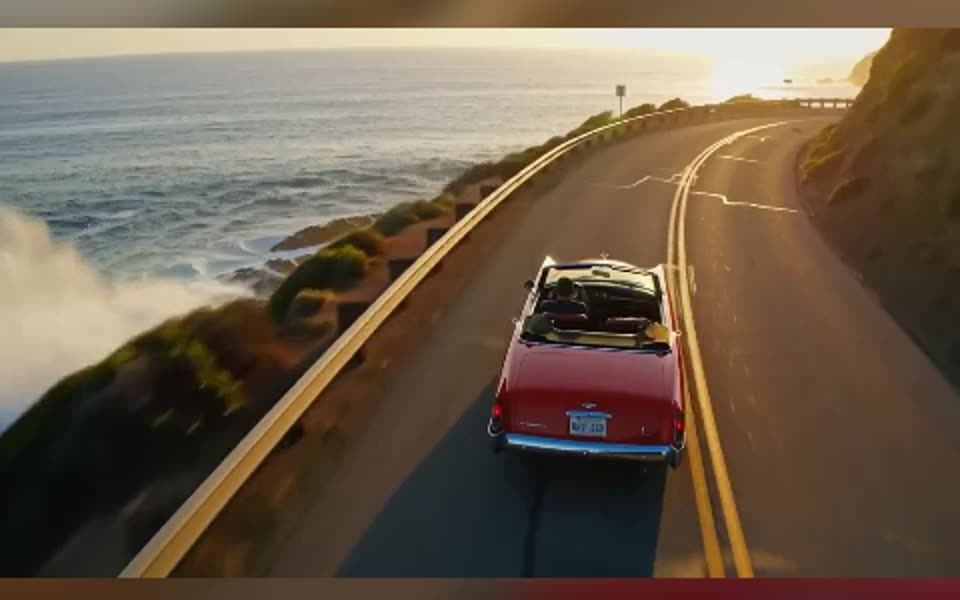 Blur or pixelate your own clip
Blur a Video Online: A Part, the Background or All of It
Blur video online, free: hide part of a video with blur or pixel boxes, fill the bars with a blurred background, or blur it all. No upload, no watermark.
Free · runs in your browser
Tested 2026-10-07
Loop a Video Online, With Its Sound
Free video looper: repeat a video 2 to 10 times, blend the seam for a smoother loop and keep the sound. Runs in your browser with no upload or watermark.
Free · runs in your browser
Tested 2026-10-02