
Product workflows
Perfume product video: glass, reflections and a gentle orbit
Plan a perfume bottle video from a still using a real example. Learn how to control camera movement, inspect glass and keep exact labels in the edit.
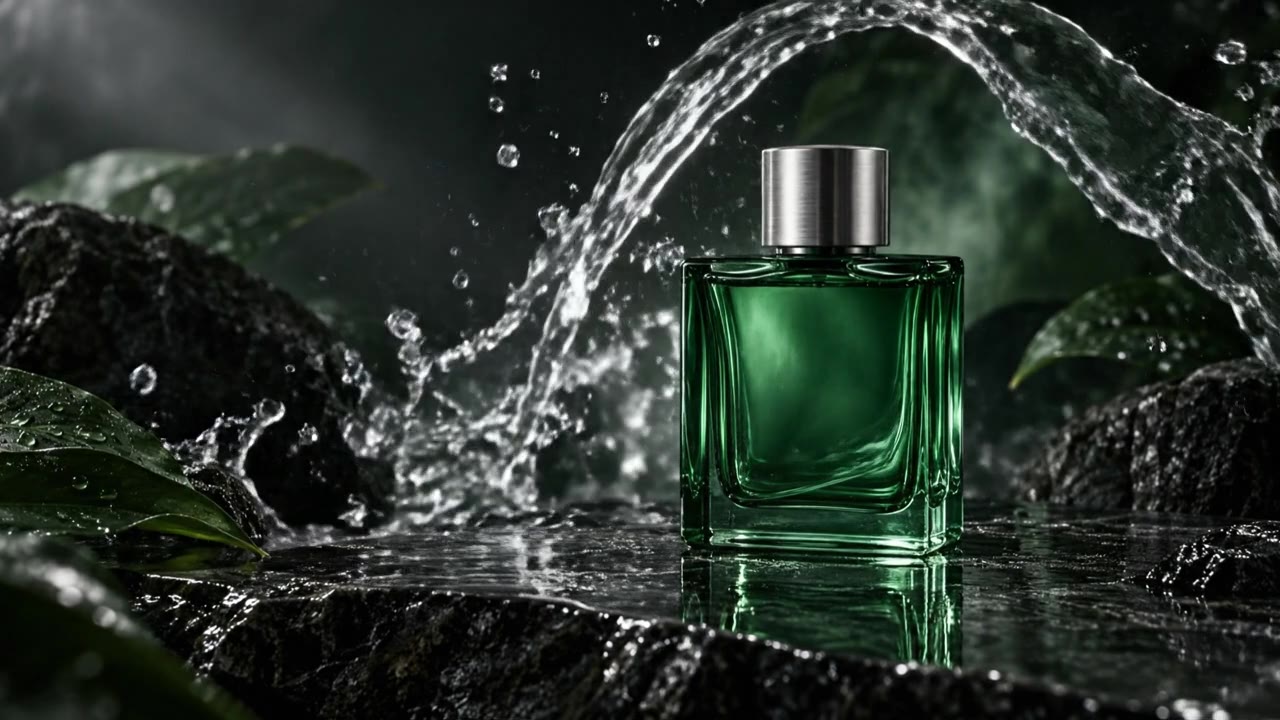
A perfume bottle combines several difficult visual elements: transparent glass, a cap, reflections and often small lettering. Decide which element carries the shot before generating. A gentle camera move and one moving background detail are easier to judge than a bottle spinning through a cloud of liquid.
The example below uses an original green bottle scene. It is a creative sample, not a named fragrance advertisement or evidence of product sales.
Define the visual hierarchy
Make the bottle the stable subject. Let the camera move slightly, or let a reflection move across the glass. Treat splashes and droplets as optional background action. When every element competes for attention, it becomes harder to tell whether the product is still correct.
For a real bottle, start from a permitted photograph with a readable silhouette. Avoid a background that merges with the bottle edges. Keep the original image available for comparison throughout the edit.
Use a modest movement
The published example followed this direction:
A slow, subtle camera orbit around the green glass perfume bottle. The water ribbon flows gently behind it and droplets fall onto the dark stone. A soft light sweeps across the glass. Keep the bottle silhouette and silver cap consistent. One continuous shot, no cuts, no added text.
This selected take used Veo 3.1 Fast, image-to-video, six seconds, 16:9 and audio off. Its recorded provider cost on September 8, 2026 was $0.60. It is one observed result, not a general benchmark or a promise about every glass product.
Open the perfume recipe to see the saved configuration, or start a new Veo 3.1 Fast generation from the same image.
As a newly verified alternative, Seedance 2.0 runs 4–15 seconds at 480p or 720p with audio optional; a 4-second 720p generation is 303 credits. Try both on the same bottle photograph and compare.
Check the glass, not just the mood
Watch the bottle shoulders, base and cap. A bright highlight can hide a changing edge. Inspect the point where the water crosses behind the bottle and check whether it suddenly passes through the solid object.
A single photograph does not provide a verified view of the bottle's hidden side. Keep an orbit small unless you have a workflow that can use additional views. Do not describe an invented rear label as accurate product footage.
For lettering that must be exact, use a photographed label or editable text layer in your finishing tool. A prompt asking for exact typography is not a reliable substitute for that step.
Revise one source of motion
If the silhouette drifts, first lock the camera and retain only the light movement. If the water becomes distracting, remove it. If reflections look flat, adjust the lighting brief while keeping the same image and framing.
These are revision suggestions, not additional results tested on this site. Keep the accepted baseline so you can compare whether a change actually improves the deliverable.
Turn the shot into a finished product video
To build a complete video around the accepted bottle clip, open Product Video Maker from Photos & Clips and combine it with your own product photos or footage. Upload one to three files, write your opening caption, a product detail and a call to action, then review the three editable scenes in Studio before exporting an MP4. Composing your own photos and clips uses no AI generation credits; adding another AI-generated shot is optional and shows its own credit quote before you generate it. The project saves to My projects, so you can reopen it later to keep editing or download the finished file. This assembles the scenes you choose — it does not estimate ad performance, conversions or viral reach.
Build the final ad around the approved shot
Use a short opening image, the accepted motion shot and a closing card with the real offer. Add music or sound separately; this sample is silent. Review the final crop because a frame that works horizontally may lose the cap or base when cropped vertically.
For other reflective products, the jewelry light-sweep guide offers a camera-locked approach. The product video maker shows how to combine individual shots without promising a single generation will create a complete campaign.
Make a complete video from this shot
A three-part ad plan, supporting-shot prompt and clear editing tasks. Replace the worksheet's fictional example with your product facts, then build a brief and continue in Studio.
Make an ad plan from a product photoPlanning is free. Your sample clip is not imported automatically. Add your accepted footage in Studio, review the sequence and choose when to render.