
Product workflows
Jewelry video from a photo: animate light, keep the setting
Create a restrained jewelry product shot from a still. Study a real ring example, a light-sweep prompt, gemstone checks and a practical editing handoff.
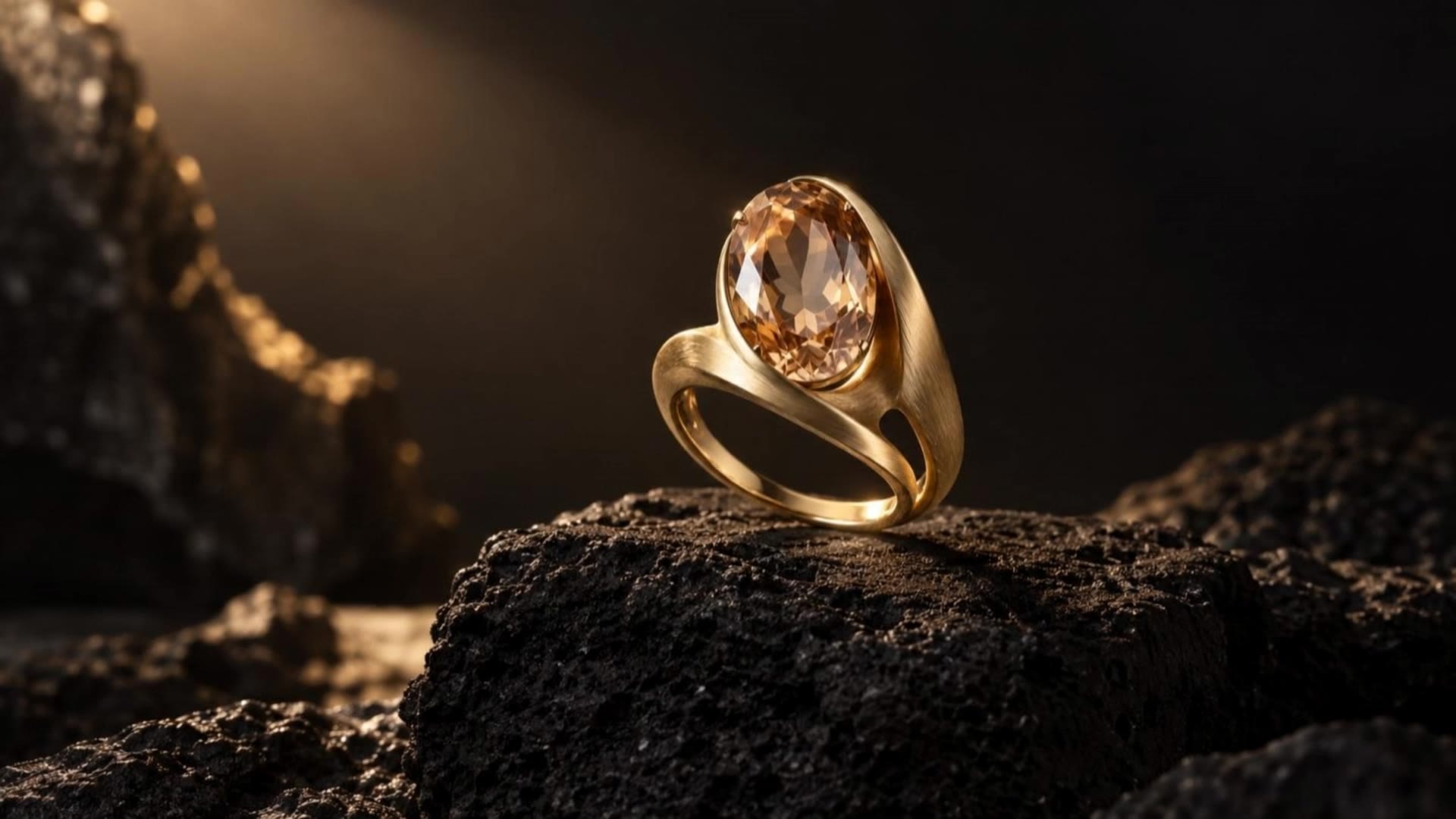
For jewelry, the setting and shape are part of the product. A dramatic turn can look attractive while changing a prong, facet or band. A restrained light sweep gives a photograph movement while asking less of the object's geometry.
Our example uses an original illustrated gold ring with a champagne-colored stone. It demonstrates a generation workflow; it does not certify the appearance, materials or gemstone quality of any item for sale.
Start with a readable setting
Select a still that clearly separates the stone, prongs and band. Crop away visual clutter without cutting through the ring. A light sweep works best when the starting photograph already contains a plausible light direction.
Count the parts you need to preserve before generating. Save that note with the input. “Four visible prongs and an oval stone” is more useful for review than a general request to preserve quality.
For a real listing, retain actual product photography as the source of truth. If a generated take changes a product detail, do not use that altered detail as the item's factual demonstration.
The prompt used for this example
The gold ring stays completely still on the stone. A narrow soft studio light slowly sweeps from left to right, making the facets of the champagne gemstone catch brief natural highlights. Camera is locked. Preserve the exact rigid ring shape, oval stone, setting and brushed gold texture. Elegant restrained jewelry commercial. No rotation, no morphing, no added jewelry, no cuts, no text.
The words “camera is locked” and “no rotation” remove two possible sources of shape change. They are directions to the model, not guarantees that the output will obey.
The selected take used Kling 3.0 Pro with a five-second duration, 16:9 framing and audio off. The recorded provider cost on September 8, 2026 was $0.56. See the saved ring recipe for its inputs, or start a new Kling 3.0 Pro generation from the same image.
As a newly verified alternative, MiniMax H3 Max runs 5–15 seconds at 480P or 768P with audio always included; a 5-second 768P generation is 100 credits. Try both on the same photograph and compare.
Inspect details in motion
Watch whether the highlight travels while the metal remains stable. Compare the number of prongs, the stone outline, the inside of the band and the point where the ring meets the surface. A moving reflection is expected; a prong appearing or disappearing is a reason to reject the take.
Extract a few frames using the local tool. Then play the full clip again. Frame inspection finds shape changes, while playback reveals shimmer and flicker.
Make a useful revision
If the stone flashes too aggressively, request a broader, softer light. If the whole ring rotates, remove all camera movement and shorten the action. If fine details remain unstable, use a conventional pan or zoom on the original photograph in an editor.
Keep each attempt associated with its prompt. Do not overwrite the accepted version while trying a more ambitious variation.
Turn the shot into a finished product video
To build a complete video around the accepted ring clip, open Product Video Maker from Photos & Clips and combine it with your own product photos or footage. Upload one to three files, write your opening caption, a product detail and a call to action, then review the three editable scenes in Studio before exporting an MP4. Composing your own photos and clips uses no AI generation credits; adding another AI-generated shot is optional and shows its own credit quote before you generate it. The project saves to My projects, so you can reopen it later to keep editing or download the finished file. This assembles the scenes you choose — it does not estimate ad performance, conversions or viral reach.
Deliver the shot
Add exact collection names, material descriptions and prices as separate text layers. Keep enough time for the viewer to read them. If the deliverable needs several pieces of jewelry, make separate shots and assemble them intentionally rather than asking one generation to transform one item into another.
The perfume workflow tackles a different reflective object: glass, liquid and a bottle silhouette. For assembling several approved product shots, see product video maker.
Make a complete video from this shot
A three-part ad plan, supporting-shot prompt and clear editing tasks. Replace the worksheet's fictional example with your product facts, then build a brief and continue in Studio.
Make an ad plan from a product photoPlanning is free. Your sample clip is not imported automatically. Add your accepted footage in Studio, review the sequence and choose when to render.