
Creative workflows
How to Bring a Photo to Life With AI and Keep the Face the Same
Pick what 'alive' should mean (a blink, a spoken line, a moving scene), prepare the photo, ask for one movement and check the clip. Two recorded Kling clips, prices as of Nov 5, 2026.
Video examples here were generated on Cicadas and keep their model, settings and date. Cicadas earns money when you generate with these models. How we test
- Test window:
- 2026-09-08 – 2026-09-30
- Clips recorded with these models:
- 11
- Models:
- Kling 3.0 Pro
- Their provider cost:
- ≈$6.16
- Selection:
- every clip we keep is listed with its settings, cost and request ID; failed or discarded runs are listed in the test record.
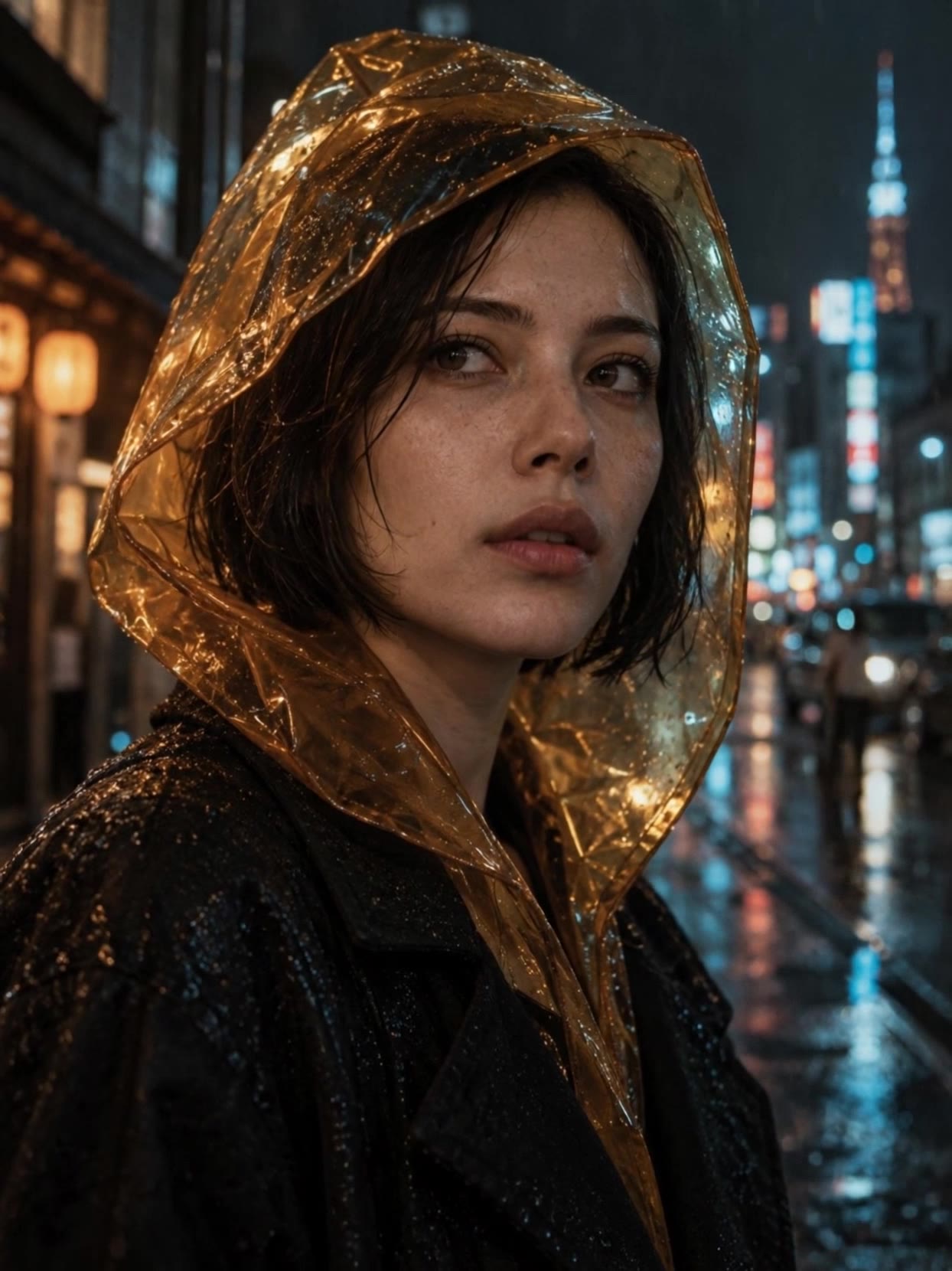
Short answer: "bringing a photo to life" can mean three different things: a small silent movement, the person in it speaking, or the whole scene moving with the camera. Decide which one you want, because each is a different page and a different price. For the most common one, a face that blinks and breathes, upload a sharp photo to animate photo AI, ask for one movement and check the clip to the end. Five seconds on Kling 3.0 Pro is 140 credits.
We make Cicadas, so the pages below are ours. The two clips in this post were generated on Cicadas on September 8, 2026, on Kling 3.0 Pro image to video, 5 seconds, silent, at a recorded provider cost of $0.56 each; the portrait is of a fictional adult and the kitten photo is ours. Credit prices are from the site's price table on November 5, 2026.
First, decide what "alive" means for this photo
| What you want | What happens to the photo | Where on Cicadas | Price for 5 seconds |
|---|---|---|---|
| A blink, a breath, hair in a breeze | Silent clip, face and room kept, one small motion | Animate photo AI | 140 credits (Kling 3.0 Pro) |
| The person says a line you type | Clip with a generated voice, or your own recording | Talking photo | 63 credits (MiniMax H3 Max) |
| A painting or drawing that moves | Brushwork kept still, the scene moves, with sound | Animate a painting | Quoted on the page |
| A camera move or a whole scene in motion | Push-in, orbit, weather, with presets for camera and environment | Image to video | 140 credits on Kling 3.0 Pro; other models quoted there |
A template app that zooms, slides or fades a still is a fourth kind of "alive", but nothing inside the picture changes. An image-to-video model draws new frames, so eyes close, chests rise and leaves move. That is also why the result can drift from your original, which the rest of this guide is about.
Step 1: choose and prepare the photo
The photo decides more than the prompt does. For a face, use one where the face is sharp, lit evenly, looking roughly towards the camera and large in the frame, with nothing covering it. Sunglasses, a hat brim, a hand near the mouth or a second person all give the model something to get wrong.
Crop before you upload. The clip keeps the shape of the photo: our portrait request said 9:16 but came back 720 × 960, and the kitten came back 1244 × 1660, both the 3:4 of their source images. If the clip is for a vertical feed, crop the still to 9:16 first.
For an old print, the scan is the photo. Lay it flat near a window, shoot it straight on without flash, and trim the white border and any curled corner, because the model animates whatever it is given, glare included.
Use your own photos, or photos of adults who agreed to be animated.
Step 2: ask for one movement
The animate photo page has three starting prompts, one per subject, and each asks for very little:
| Subject | Movement to ask for | What to keep still |
|---|---|---|
| A face | One blink, natural breathing | The head, the camera, facial details, the background |
| A pet | One blink, a tiny ear twitch, breathing | The body seated, paws planted, the camera |
| A landscape | Foliage in a soft breeze, clouds drifting | Buildings, rocks, the horizon, the camera |
This is the prompt our rain portrait ran with:
The woman gently turns her head a few degrees and blinks once. Fine rain runs down the translucent amber hood. City bokeh stays soft and stationary. Subtle breathing, locked camera, natural facial movement. Preserve her identity and clothing, no cuts.
Read it as three lists. What moves: the head, a few degrees, and one blink; rain on the hood. What stays: the city lights, the camera. What must survive: her identity and her clothing. The kitten prompt follows the same pattern for an animal: one blink, a head tilt "as if listening", a tiny ear twitch, paws planted, and "no extra limbs, no mouth opening".
If you want more life, change the movement, not the length of the prompt. A blink plus a smile plus a wave plus a camera move is four chances for the face to change.
Step 3: check the whole clip
Watch to the last frame, then pause at the start, the middle and the end and put each next to your photo. The usual slips in a face are eye colour changing, teeth appearing where the mouth was closed, earrings or glasses disappearing, and a hand gaining a finger. In a pet, look at the paws and the whiskers; in a landscape, at writing on signs, which tends to go wavy.
If you need to look closely, the free video to frames tool pulls stills out of the MP4 in your browser without uploading it.
When something slipped, make the movement smaller and generate again. If the whole clip is fine but too short to share, loop video repeats it 2 to 10 times into one MP4, free and without a watermark, and can blend the end into the start.
Which model, if not Kling?
The animate photo page runs on Kling 3.0 Pro. We ran the same kitten photo and prompt on Kling 3.0 Pro, Seedance 2.5, Vidu Q3, Vidu Q4, PixVerse v6 and Luma Ray 3.2; the results and prices are in same prompt, different AI video models, and the clips side by side with a form for your own photo are on best image to video AI. To put yourself into a new scene rather than animating the photo you have, read how to put yourself in an AI video.
Questions
What is the easiest way to make a picture come to life?
Upload one sharp photo to an image-to-video model and ask for a single small movement, such as one blink with natural breathing. On Cicadas that is the animate photo page: Kling 3.0 Pro returns a silent 5-second MP4 for 140 credits, quoted before you generate.
Can an animated photo talk?
Not on the animate photo page, which is silent and does not move the mouth to speech. To make the person in the photo say a line, use the talking photo page, where MiniMax H3 Max makes the motion and the voice together: 63 credits for 5 seconds. Use your own photo or one of an adult who agreed.
Why does my animated photo not look like the person any more?
The model draws every frame again from your photo, and each extra action is another chance to redraw the face. Ask for one movement, keep the head still and the camera locked in the prompt, and start from a sharp, front-facing photo where the face is large.
Is it free to animate a photo with AI?
Watching our sample clips is free; animating your own photo on Kling 3.0 Pro costs 140 credits for 5 seconds or 280 for 10, about $1.39 for 5 seconds on the $9.90 first pack of 1,000 credits. A new account can claim one free watermarked 5-second 480P clip on a supported page within 7 days while the daily places last, and the loop tool that repeats a finished clip is free with no watermark.
Ready to try your own photo? Open animate photo AI, pick the preset that matches the subject and read the quote before you generate.