
Free tools
How to Add Text to a Video Without an Editor: Steps, Sizes and Export Times
Put a title or caption on a clip in the browser: choose the video, type the text, set where and when it shows, export an MP4 with the sound. Tested numbers.
Video examples here were generated on Cicadas and keep their model, settings and date. Cicadas earns money when you generate with these models. How we test
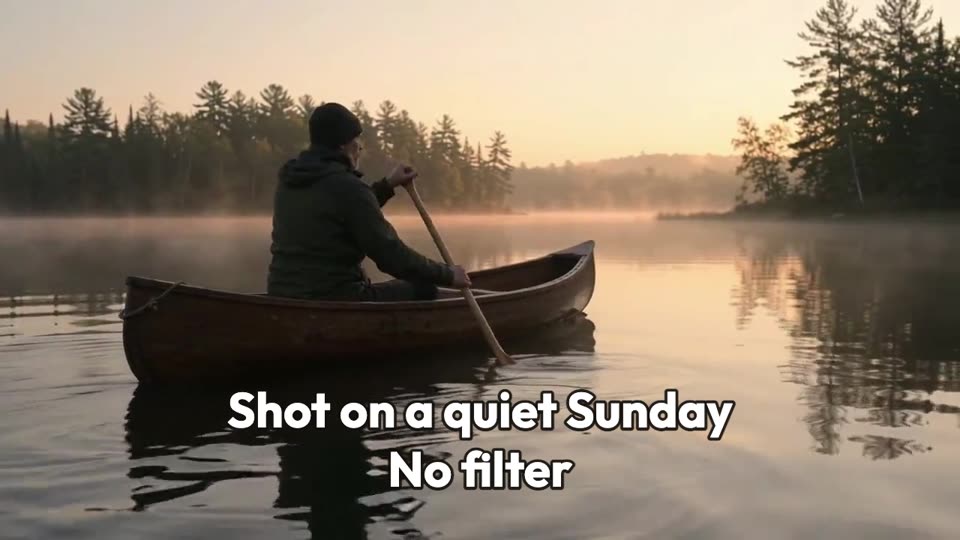
Short answer: to add text to a video without an editor, open a browser tool that draws text on your clip, choose the video, type the text, pick where it sits and when it shows, and export. On our free add text to video page that gives an MP4 with the clip's sound, with nothing uploaded and no watermark.
This post is by the people who run Cicadas and links to our own tool. The numbers are from automated exports we ran on 2026-11-15 in Chrome on a Mac, with our own sample clips; no export was run on a phone, in Safari or in Firefox.
What you need
| You need | What works | What we used |
|---|---|---|
| The clip | MP4, MOV or WebM, up to 500 MB; the first 60 seconds are used | an 8-second 1280 × 720 clip and a 4-second 720 × 1280 clip |
| The words | Up to three texts, each up to two rows of 60 characters | two texts on each clip |
| A place and a time for each | Top, middle or bottom; a start and an end in seconds | a title for 3 seconds, a caption from 2.5 seconds to the end |
Step 1: choose the video
Open add text to video and choose the file. It plays from your device and is not uploaded. A clip longer than 60 seconds is cut to its first 60, and the page says so before you export.
Step 2: type the text and place it
Type the text as it should appear: it is drawn as you typed it, not rewritten, so a name, a price or a date stays as it is. Runs of spaces become one space. Pick top, middle or bottom. The text shows over the picture at once, so you see whether it covers something that matters.
| Clip | Where text reads | Why |
|---|---|---|
| Vertical, for Reels, Shorts or TikTok | Top for a hook, middle for a closing line | The apps cover the bottom and the right edge with their own buttons and captions |
| Wide, for YouTube or a website | Top for a title, bottom for a caption | Nothing is laid over a wide player's picture while it plays |
| Square feed post | Top or bottom | The middle is usually the subject |
Step 3: set when it shows
Each text has its own start and end. Play the clip, pause where the text should appear and press set to the player's time, or type the seconds. A text fades in and out over a quarter of a second; one that starts with the clip or runs to its end is whole on the first or last frame.
In our wide sample the title "Lake morning" shows from 0 to 3 seconds and a two-row caption from 2.5 seconds to the end, so the two overlap for half a second while one fades and the other arrives.
Step 4: pick a look that reads
| Style | Use it when |
|---|---|
| Outline | Most footage: a dark edge keeps light text readable as the picture changes |
| Box behind | Busy footage, such as a crowd or leaves |
| Soft shadow | Calm, dark pictures; over a bright sky white text can wash out |
There is one bold typeface, three sizes and three colours (white, yellow, black). A long row wraps and shrinks to stay inside the picture.
Step 5: export and check
Press Make the MP4 with this text. The file is written in the browser tab and keeps the clip's sound (for files up to 300 MB).
The wide sample: two texts, Large, white, Outline. 1280 × 720, 8 seconds, 5.4 MB.
The vertical sample: a hook at the top for the whole clip and a line in the middle for the last 2 seconds, Medium, yellow, Box behind. 720 × 1280, 4 seconds, 2.3 MB.
| Clip | Texts | Result | Time to export |
|---|---|---|---|
| 8 s, 1280 × 720, with sound | 2 | 5.4 MB, sound kept | 16 to 21 s |
| 4 s, 720 × 1280, with sound | 2 | 2.3 MB, sound kept | 4.4 to 6.1 s |
| 5 s, 1920 × 1080, no sound | 2, one in Chinese with an emoji | 4.7 MB, silent | 12 s |
| First 60 s of a 75 s clip, 640 × 360 | 3 | 10.7 MB, sound kept | 53 s |
Watch the whole file once before you post it. The finished file is kept only until you leave or refresh the page, so download it first.
What this way does not do
It does not write subtitles from speech, animate the letters, offer other typefaces or let you drag text to any point. For words that move on a plain background, use the text animation maker. For a song with its words in time, the lyric video maker.
Questions
How do I add text to a video without an editor?
Open a browser tool that draws text on your clip, choose the video, type the text, pick top, middle or bottom, set when it appears and leaves, and export. On our free page that gives an MP4 with the clip's sound, with nothing uploaded and no watermark. In our test an 8-second 720p clip with two texts exported in 16 to 21 seconds.
Where should a caption go so it is not covered?
For a vertical clip posted to Reels, Shorts or TikTok, the apps put their own buttons and captions over the bottom and the right edge, so a hook reads best at the top and a closing line in the middle. For a wide clip, a title at the top and a caption at the bottom both stay clear. Check the result in the app before you post.
How long should text stay on screen?
Long enough to read twice at a calm pace. In our samples a two-word title stayed for 3 seconds and a two-row caption for 5.5 seconds. On the page each text has its own start and end, to a tenth of a second, and fades in and out over a quarter of a second.
Will adding text lower the quality or remove the sound?
The clip is encoded again as H.264 at 480p, 720p or 1080p by the short side, never larger than your clip, so a 1080p clip can stay 1080p. The sound is encoded again as AAC and kept. If the browser cannot write sound, none can be read from the clip, or the file is over 300 MB or longer than 10 minutes, the MP4 is silent and the page says why.
Tools used in this guide
- Add Text to Video: Type It, Place It, Download the MP4FreeAdd text to video free: choose a clip, type up to three texts, set where and when each one shows, and download an MP4 with the sound kept. No upload.
- Text Animation Maker: Type It, Pick a Motion, DownloadFreeFree text animation maker: type up to three lines, pick typewriter, word by word, fade, pop, rise, wipe, focus or shine, and download an MP4 or GIF. No upload.
- Lyric Video Maker: Add a Song, Paste the Lyrics, DownloadFreeFree lyric video maker: add a song, paste the lyrics, tap along to time each line and download an MP4 with the song. Runs in your browser, no upload.