
Free tools
How to Blur Part of a Video: Faces, Plates, Screens and Backgrounds
Which blur to use for a face, a licence plate, a name on screen or a background, what a fixed box can and cannot hide, and what our free browser tool made on November 5, 2026.
Video examples here were generated on Cicadas and keep their model, settings and date. Cicadas earns money when you generate with these models. How we test
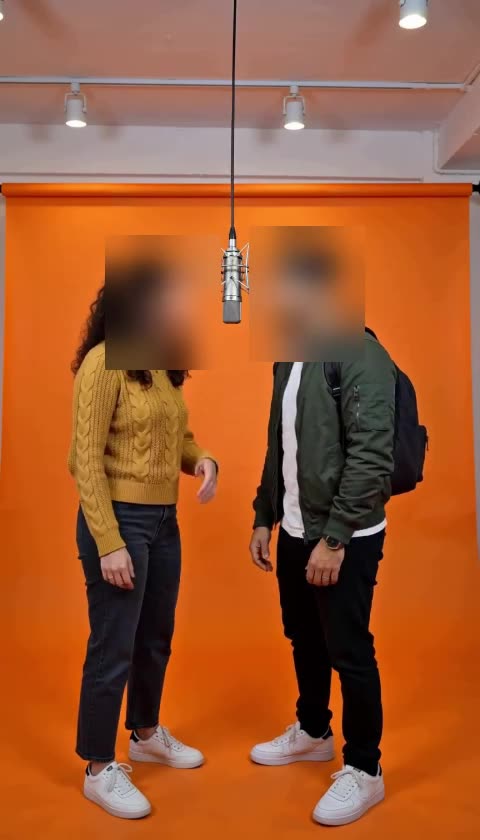
Short answer: draw a box over what must not be seen, give it the seconds it is needed, set the strength to Strong and export a new MP4. Our free blur video tool does that in the browser with up to eight boxes, blur or pixelate, and keeps the sound; nothing is uploaded and there is no watermark. A box stays where you put it, so a face that walks across the frame needs several timed boxes or an editor with object tracking.
We make Cicadas. On November 5, 2026 we tested the tool on cicadas.ai with two files: a 12-second 1920 by 1080 mock screen recording we made, showing a made-up email address and account balance over a test tone, and a 5-second 1080p coffee clip of ours. Every result below comes from those runs.
Which blur for which job
| What you need to hide | What to use | Watch for |
|---|---|---|
| A face that stays in place (an interview, a seated speaker) | One box, Strong blur | Hair and ears beyond the box |
| A face that moves | Several boxes, each with its own From and To seconds | Gaps between boxes; check each change in the preview |
| A licence plate or a house number | One box on the plate while the car is still | A moving car needs timed boxes, like a moving face |
| A name, email or balance in a screen recording | Pixelate or blur, Strong | Scrolling moves the text out of the box |
| The bars around a landscape clip posted as 9:16 | Background fill | It does not separate the person from the background |
| The whole clip, as a backdrop for text | Whole video | Medium is often enough for a backdrop |
What our test produced
| Run | Settings | Result | Time to make |
|---|---|---|---|
| Screen recording, 12 s | 2 boxes, blur, Strong, 1080p, 30 fps, sound kept | 1920 × 1080 MP4, 436 KB, with sound | 58 seconds |
| Same clip | 2 boxes, pixelate, Strong | 1920 × 1080 MP4, 375 KB, with sound | 58 seconds |
| Same clip | Whole video, Medium, 720p | 1280 × 720 MP4, 257 KB, with sound | 61 seconds |
| Coffee clip, 5 s, no sound | Background fill, 9:16, Strong, 720p | 720 × 1280 MP4, 3.2 MB | 18 seconds |
In the first two runs one box covered the email address for the whole clip and the other covered the balance from 0 to 6 seconds. A frame at 3 seconds showed both as grey smears or blocks; at 8 seconds the balance was readable again, as set, and the email was still hidden. The page sent no upload request during any run. Our timings come from a headless browser on a Mac; the page's own test in a normal Chrome window blurred 5 seconds of a clip at 480p in about 7.
How to blur part of a video, step by step
- Open blur a video and choose the file (MP4, MOV or WebM).
- Leave "An area" selected and drag a box on the preview over what must disappear, or click "Add a box in the centre" and type its Left, Top, Width and Height in percent.
- If it only needs hiding for part of the clip, fill the box's "From (seconds)" and "To (seconds)". Empty times mean the whole exported part.
- Choose "Blur" or "Pixelate", then "Strong" for anything that must not be read.
- Set the start and end of the export (up to 60 seconds each time), 24 or 30 fps, and 480p, 720p or 1080p.
- Click "Blur video", then "Download MP4". The result lives on the page only until you leave or refresh, so download it straight away.
Faces that move: timed boxes or tracking
The Cicadas tool does not detect or follow faces. That is a limit and also a guarantee: a box never drifts off the face on its own. For a face that moves, scrub the preview, note where it is during each stretch, and give each position its own box with From and To times; with up to eight boxes that covers most short clips. Check the preview at each change, because a gap of even a few frames shows the face.
If the clip is going to YouTube anyway, YouTube Studio's editor has a Blur option with face blur, which scans the video for faces you can pick, and a custom blur where you choose "Track object" so the box follows the subject, or "Fix blur position" (YouTube Help, read November 5, 2026). Tracking can lose a subject that turns or is covered, so watch the whole result there too.
Blur or pixelate, and how strong
Pixelation reads as "deliberately hidden"; blur looks softer and draws less attention. For hiding, strength matters more than the style: at Strong, both styles made our 56-pixel email line and 72-pixel amount unreadable. Large text can stay readable through a light blur, so use Strong for anything private and check the preview at the size people will watch.
Make the box a little larger than the thing it hides. Text in a screen recording moves when you scroll, and a plate grows as the car comes closer.
"Background blur" means two different things
- Blurred bars. You post a 16:9 clip as a 9:16 Reel and want a blurred copy of the picture behind it instead of black bars. That is "Background fill" on the blur page: our coffee clip became 720 by 1280 with the full picture in the middle.
- A sharp person on a blurred scene, like a phone's portrait mode. That needs the person cut out on every frame. The video background remover does the cutting with AI for clips of up to 10 seconds and gives a transparent WebM, with the credit price shown before you start; put it over a blurred copy of the same clip in your editor.
If you want something gone rather than blurred, a passer-by or a logo on a cup, remove an object from a video erases it with AI and fills in the background.
Privacy: what a blur does and does not hide
The blur is written into the pixels of the new MP4; the sharp pixels under the box are not in it. Your original file is not changed, so delete or keep it private and share only the blurred copy. A blurred face can still be recognised from clothes, a voice or the place, and a blurred screen can still show its layout, so blur everything that identifies, not just the obvious part. Because the tool runs on your device, the unblurred video is not sent anywhere while you work.
To pull clean stills out of the finished clip for a thumbnail or a report, see our guide to extracting frames from a video.
Questions
How do I blur part of a video for free?
Open a browser blur tool, choose the area mode, drag a box over what must be hidden, pick Strong and export. On Cicadas this is free, adds no watermark, needs no account and does not upload the video; our 12-second 1080p test came out as a 436 KB MP4 with its sound.
Can I blur a face that moves around in the video?
Not with one fixed box: a box stays where you drew it. Either draw several boxes, each covering the face for the seconds it is in that spot, or use an editor that tracks objects, such as the custom blur in YouTube Studio, which offers Track object or Fix blur position.
Is blur or pixelate better for hiding text?
Either works at the strongest setting. In our test both a Strong blur and a Strong pixelate box made a 56-pixel email address and a 72-pixel amount unreadable in a 1080p frame. Lighter settings can leave large letters readable, so check the preview before you export.
How do I blur the background but keep the person sharp?
That needs the person cut out on every frame, which a box blur does not do. Remove the background with an AI background remover, then lay the cut-out over a blurred copy of the same clip in your editor. A blurred background fill only fills the bars around a clip you change to another shape.
Can someone remove the blur from my video?
Not from the file a blur tool writes: the blurred pixels replace the sharp ones in the new MP4, and there is no sharp layer underneath. Your original file still has the sharp picture, so share only the new one.
How we tested
On November 5, 2026 we opened cicadas.ai/blur-video in Chrome for Testing 1234 (headless, driven by Playwright) on an Apple-silicon Mac, loaded each file, set the options in the table, and timed from the click on "Blur video" to the finished result. We saved each MP4, read its streams with ffmpeg 6.0 (H.264 video, AAC sound where the source had sound), took frames at 3 and 8 seconds to check what the boxes hid, and logged every request the page made. The screen recording was generated with ffmpeg; the names and numbers in it are invented. Sound is kept in Chrome and Edge for source files up to 300 MB and 10 minutes.
Page we read on November 5, 2026: YouTube Help, Blur your videos.