
Backrooms AI Video Generator
Make an original Backrooms-style short shot: yellow corridors, empty pool rooms or your own room photo. Editable prompts and MiniMax H3 Max generation.
Use MiniMax H3 Max to make an original 5-second yellow-corridor shot from text or a starting image, from 63 credits at 480P. Two recorded supplier Model Lab examples show a slow forward move. They demonstrate a single shot, not a finished film or a connected floor plan; VHS texture is weak and audio semantics remain unverified.
- From 63 credits per clip
- Text to video / Image to video
- 5s / 10s / 15s
- 480P
- Audio available
Sample result
5s · MP4About Backrooms AI Video on Cicadas
Create an original first-person clip of an unsettling empty space: a yellow corridor, a deserted pool room or a room from your own photo. Start with one 5-second shot and a slow camera move. This page generates a single scene, not a finished Backrooms film, a copy of an existing episode or a continuous map.
Recorded Backrooms examples from the supplier Model Lab
An empty yellow corridor, from a text brief
Recorded October 25 with H3 Max: a slow first-person move through an empty corridor. The ceiling and walls stay recognizable in the inspected frames. The VHS grain is weak. This is one continuous-shot example; it does not establish a connected maze or a complete film. Audio is included, but its requested effects have not been independently heard.
Use this recipe ↗A small move from the generated room frame
The input is a frame extracted from the text-generated clip above, not a photograph of a real room. A small forward camera move retains the yellow walls and tiled ceiling in this take. Unseen rooms and stronger tape effects remain untested; inspect the full result before using it.
Use this recipe ↗Why use Cicadas for Backrooms AI Video
Describe the place before adding a threat
Start with the corridor width, ceiling, light and camera direction. An empty space with one slow movement is a clearer starting point than asking for a chase, a creature reveal and several cuts at once.
Found-footage texture, with limits
Ask for slight handheld sway, muted colours and fluorescent hum. Grain and flicker are generated visual suggestions; dates, readable signs, continuous floor plans and precise physical lighting are not guaranteed.
Two recorded corridor takes, with limits
The recorded examples show a text-generated corridor and a small move from its generated first frame. The three scene buttons remain editable ideas; the pool-room scene is untested. Check the credit quote and inspect your full result.
How to use Backrooms AI Video
- 01
Choose Text to video for an invented space. For your own empty-room photo, switch to Image to video and upload that image before choosing the photo scene.
- 02
Load a scene, keep one camera action, and check 5 seconds, 480P and the current credit quote. Edit the layout and sound to fit your idea.
- 03
Generate and watch the full shot. Look for changing doorways, warped walls and sudden cuts; simplify the action if you choose to generate again. Download completed clips from My videos.
Build a longer story from separate shots
Keep a note of each room, light and camera direction. Download shots and arrange them in your editor with your own captions and sound. Separate generations can change the layout, so do not rely on them to connect into one physically consistent building.
Start from a room you can photograph
An empty-room photo can anchor the first frame. Keep the move small and avoid asking the model to invent an entire unseen hallway. Use an image you have permission to upload.
Backrooms AI Video prompt ideas
Copy one into the prompt box above and adapt it to your shot. Or write your own shot by shot in the prompt generator.
“First-person found-footage shot in an original empty maze of faded yellow corridors. Low tiled ceiling, fluorescent fixtures, worn carpet, a slow cautious walk with slight handheld sway. Five seconds, one continuous shot with a clear path ahead. Sound: faint fluorescent hum and soft footsteps. No people, creatures, logos, writing or cuts. VHS grain as a visual texture, not a date overlay.”
“An original deserted indoor pool room with pale tiles, shallow still water and one dim fluorescent light. First-person camera pauses at the doorway, then slowly leans toward a dark adjoining corridor. Five seconds, one continuous shot. Sound: distant water drips and room echo. No people, monsters, lettering or cuts.”
“Use this owned photo of an empty room as the first frame. Preserve the room layout and make a slow handheld push toward the existing open doorway. Subtle fluorescent flicker, muted colours and a faint analogue-video texture. Five seconds, one continuous shot. Sound: a quiet electrical hum. No new doors, people, writing or cuts.”
Backrooms AI Video FAQ
Related tools
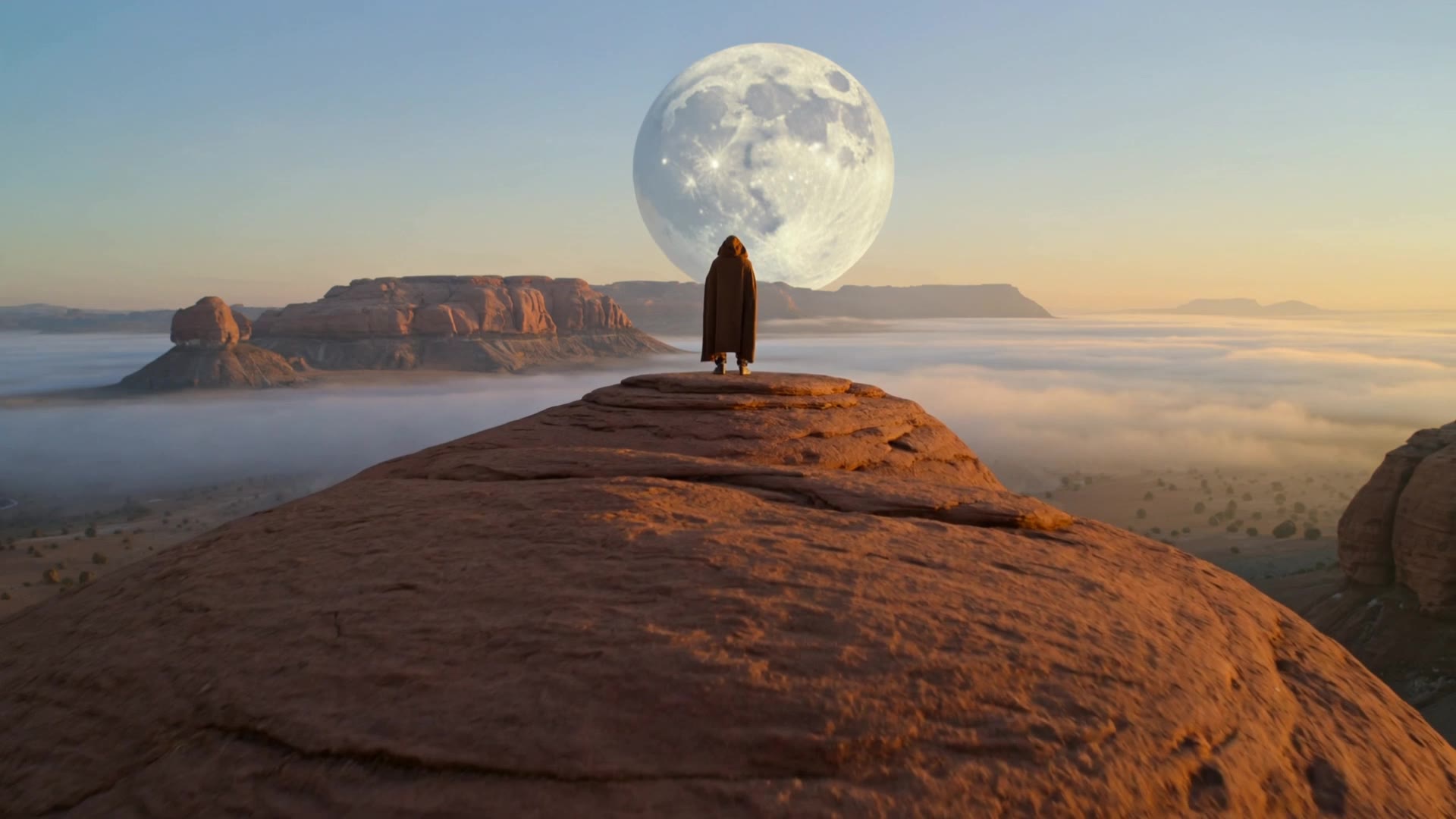 Kling 3.0 Pro · Recorded Cicadas sample
AI Text to Video Generator
Turn one English prompt into a private MP4 with AI text to video. Pick Kling for a silent 5-second clip or Veo for text to video with audio, 6 seconds at 720p.
Kling 3.0 Pro · from 140 credits
Tested 2026-09-30
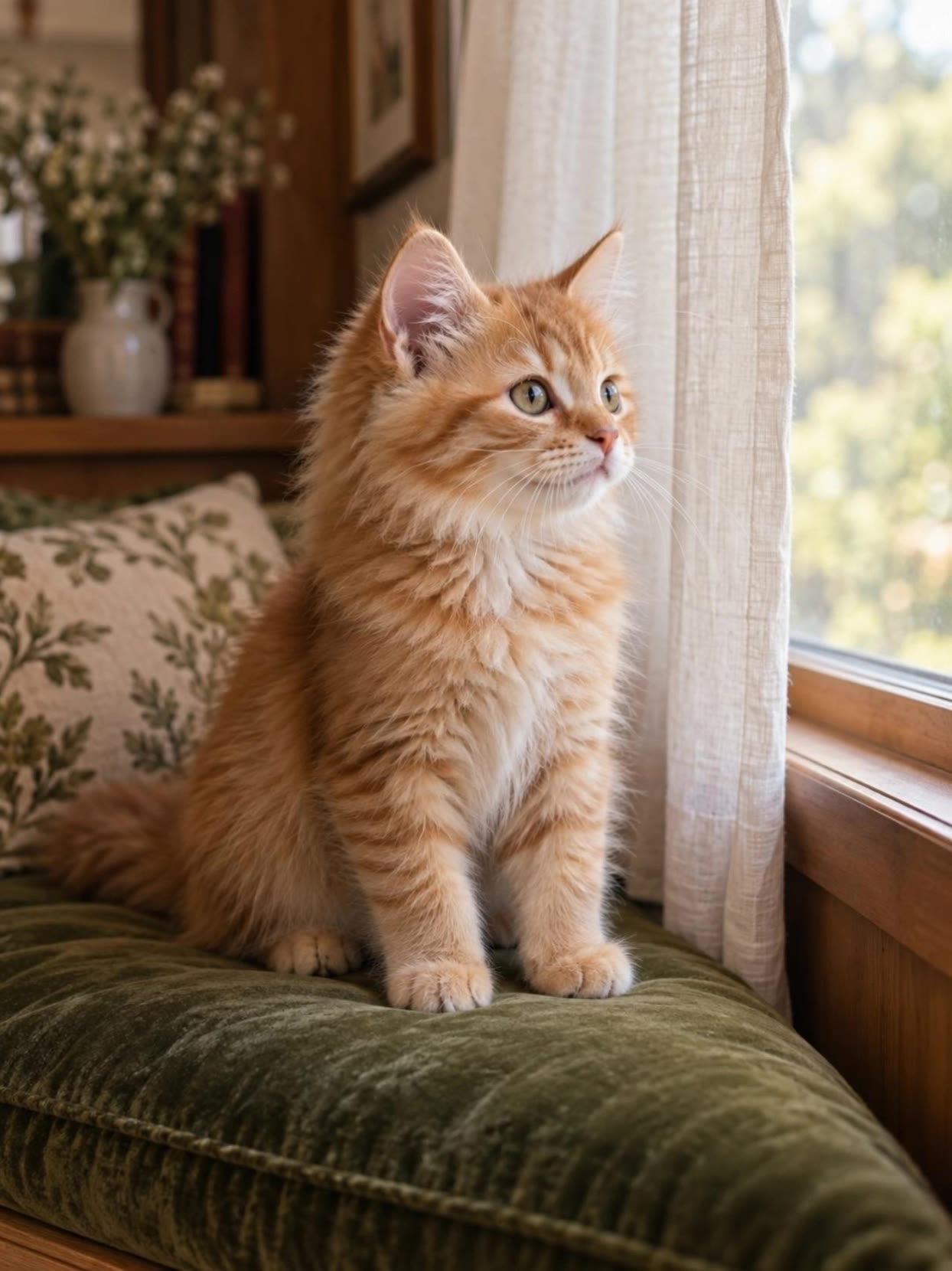 Kling 3.0 Pro · Recorded Cicadas sample
Animate Photo AI
Animate photos with AI: one photo becomes a silent 5- or 10-second MP4 with one small motion you pick. AI photo animation on Kling 3.0 Pro, price shown first.
Kling 3.0 Pro · from 140 credits
Tested 2026-09-29
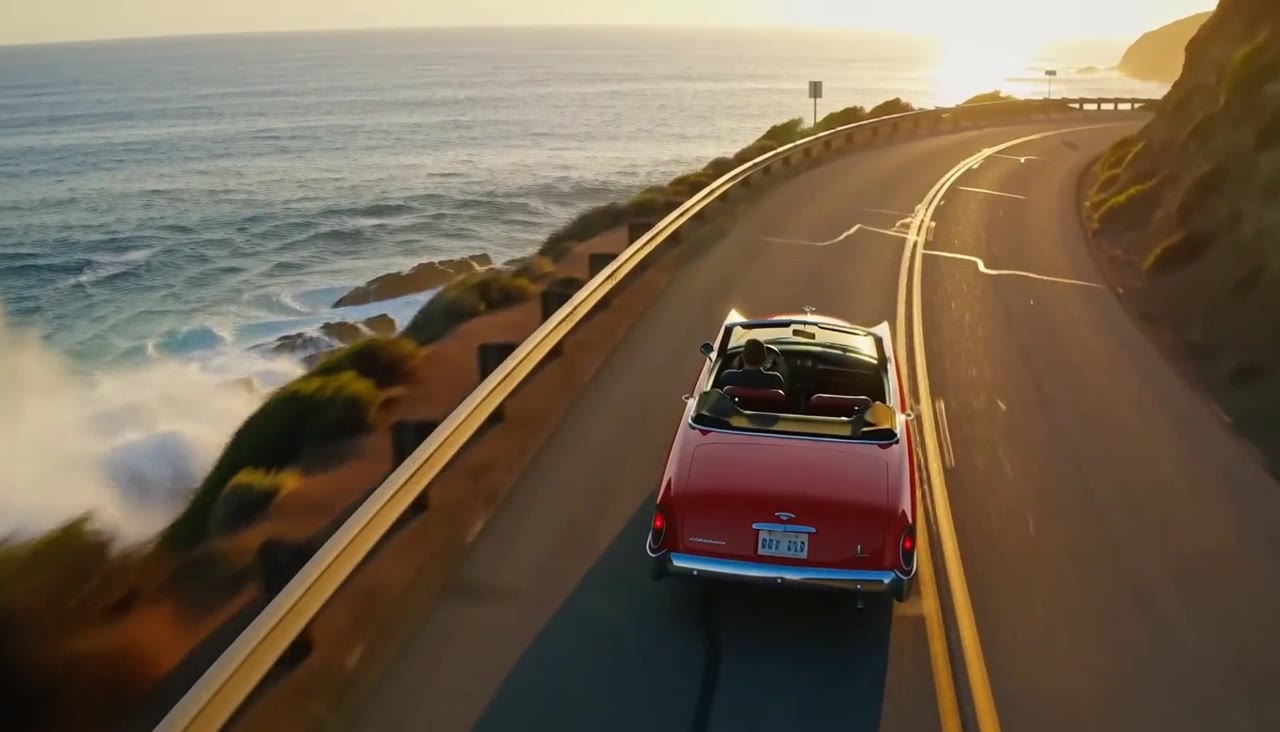 MiniMax H3 Max · Recorded Cicadas sample
MiniMax H3 Max AI Video Generator
Turn text or one image into a 5, 10 or 15-second video with sound. MiniMax H3 Max, a MiniMax video generator from 63 credits, shows the quote first.
MiniMax H3 Max · from 63 credits
Tested 2026-09-30